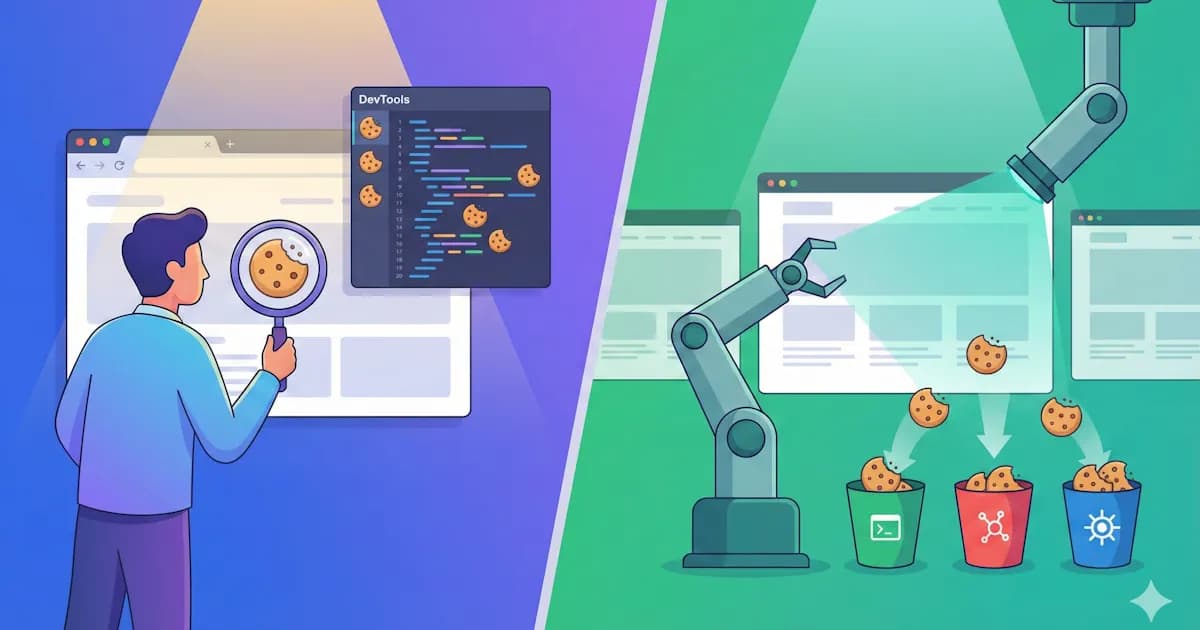
How to Run a Cookie Audit: Manual Browser Method vs Automated Scanning Tools
Step-by-step guide to auditing cookies on your website using both DevTools and automated scanners. Compares free tools (Cookiebot checker, Termly scanner, Piwik PRO) with paid CMP scanning features. Explains cookie categorization (functional, analytics, marketing), pre/post consent detection, and why regular audits matter.
You think you know what cookies your website sets. You're almost certainly wrong.
Websites typically place 40-70 cookies—many from third-party scripts you didn't directly install. That Facebook pixel from 2019? It's been silently adding new tracking cookies. The WordPress plugin your developer installed last year? You've never verified what it collects.
Here's the uncomfortable truth: GDPR requires you to know exactly which cookies you're setting, why, and when. If your privacy policy lists 12 cookies but your site actually places 47, you have a compliance problem waiting to become a fine.
Research into website compliance found that 94.7% of analyzed sites contained at least one potential violation. Nearly 70% set cookies before consent was even given.
A cookie audit is how you find these gaps before regulators do.
What You'll Learn
- How to conduct a manual cookie audit using Chrome DevTools
- When automated scanners are worth the investment
- How to categorize cookies correctly (functional, analytics, marketing, personalization)
- The critical difference between pre-consent and post-consent cookies
- A practical comparison of the best free scanning tools
Prerequisites
- Access to your website
- Chrome, Firefox, or Edge browser
- 30-60 minutes for a manual audit (5 minutes for automated scanning)
- A spreadsheet or documentation tool
Quick Comparison: Manual vs Automated Auditing
Before diving into methods, here's how they stack up:
| Factor | Manual (DevTools) | Automated Scanner |
|---|---|---|
| Time required | 30-60 min per page | 2-5 minutes |
| Pages covered | One at a time | Entire site |
| Consent testing | Full scenario testing | Limited or none |
| Cookie identification | Requires research | Auto-categorized |
| Ongoing monitoring | Not practical | Scheduled scans |
| Cost | Free | Free to paid |
| Best for | Initial investigation, troubleshooting | Regular monitoring, documentation |
Our recommendation: Start with a manual audit of your most important pages to understand your baseline. Then use automated scans for ongoing monitoring.
Method 1: Manual Cookie Audit with Chrome DevTools
Manual audits give you complete control and deeper understanding. They're ideal for small sites, initial investigations, and troubleshooting specific compliance issues.
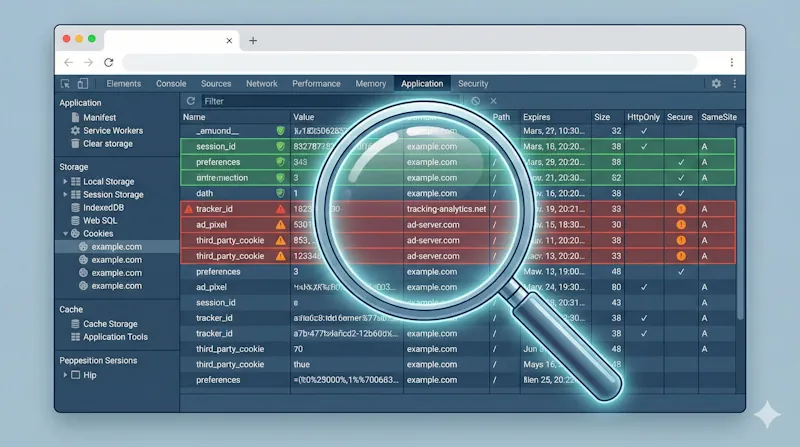
Step 1: Set Up a Clean Testing Environment
Before you begin, eliminate variables that could skew your results:
Open an Incognito window — This starts with a clean slate. Alternatively, clear all cookies via Chrome → Settings → Privacy and Security → Clear browsing data.
Disable browser extensions — Ad blockers and privacy tools interfere with accurate testing. Check
chrome://extensions/and disable them temporarily.Open DevTools — Right-click anywhere → Inspect (or press
Ctrl+Shift+Ion Windows /Cmd+Option+Ion Mac)Navigate to the Application tab — Click "Application" in the DevTools menu, then expand "Cookies" in the left sidebar under Storage.
Step 2: Test Pre-Consent Cookies (The Critical Compliance Check)
Load your website without interacting with the cookie consent banner. This is the most important test you'll run.
What you should see:
- Session identifiers (
PHPSESSID,session_id) - Security tokens (CSRF protection)
- Load balancer cookies
- Essential authentication state
What you should NOT see:
- Google Analytics cookies (
_ga,_gid,_gat) - Facebook cookies (
_fbp,_fbc) - Marketing pixels or ad network cookies
- Any third-party tracking
Pro tip: Click on each cookie to expand its details. Check the "Domain" column—cookies from domains other than your own are third-party and require extra scrutiny.
Document everything in a spreadsheet:
| Cookie Name | Domain | Category | Pre-Consent? | Post-Consent? | Expiration | Notes |
|---|---|---|---|---|---|---|
| PHPSESSID | yourdomain.com | Essential | Yes | Yes | Session | Server session |
| _ga | .google-analytics.com | Analytics | Violation | Yes | 2 years | Should block pre-consent |
If you find non-essential cookies loading before consent, you have a compliance violation requiring immediate attention.
Step 3: Test Every Consent Scenario
Now interact with your cookie banner to verify it actually works:
Scenario A: Reject All
- Click "Reject All" (or equivalent)
- Reload the page
- Check Application → Cookies
- Expected: Only essential cookies present
- Violation: Any analytics or marketing cookies appearing
Scenario B: Accept All
- Clear cookies and reload
- Click "Accept All"
- Check Application → Cookies
- Expected: All declared cookies now present
- Verify: Match against your privacy policy's cookie list
Scenario C: Granular Selection
- Clear cookies and reload
- Accept only "Analytics" but reject "Marketing"
- Check Application → Cookies
- Expected: Analytics cookies present, marketing cookies absent
- Violation: Marketing cookies appearing anyway
This scenario testing is what automated scanners typically cannot do—and where many CMPs fail silently.
Step 4: Investigate Network Requests
Cookies don't tell the full story. Data can be transmitted without cookies via URL parameters, local storage, or direct API calls.
Switch to the Network tab and reload your page. Look for requests to:
google-analytics.com/googletagmanager.comfacebook.net/facebook.comdoubleclick.nethotjar.comlinkedin.com- Any advertising or analytics networks
Filter by "Third-party" (click the filter icon) to isolate external requests. Each one represents potential data sharing that should be blocked before consent.
Step 5: Test Beyond the Homepage
Cookie behavior can vary significantly by:
- Device type — Use Chrome's device toolbar (
Ctrl+Shift+M) to simulate mobile - Page type — Checkout flows, login pages, and blog posts with embeds behave differently
- User state — Logged-in vs anonymous visitors may trigger different scripts
Test your most critical user journeys, not just the homepage.
Method 2: Automated Cookie Scanning Tools
Automated scanners save time and catch cookies you'd miss manually. They're essential for larger sites and ongoing compliance monitoring.
How Automated Scanners Work
Most scanners use headless browsers (like Puppeteer or Playwright) to load your pages and record what cookies appear. They then match detected cookies against databases of known cookies to auto-categorize them.
Advanced tools can also:
- Detect cookies set dynamically via JavaScript
- Identify localStorage and sessionStorage usage
- Track third-party network requests
- Generate compliance reports for auditors
The Best Free Cookie Scanning Tools
- Scans up to 5 pages free
- Database of 13,000+ pre-categorized cookies
- Generates downloadable compliance reports
- Best for: Quick audits and spot checks
- Free tier available with limits
- Integrates with their CMP for ongoing management
- EU-based server option for data residency
- Best for: SMBs considering an integrated solution
- Free unlimited scans
- Shows purpose, type, and duration for each cookie
- Highly customizable with CSS options
- Best for: Comprehensive free scanning
- Free compliance verification
- Tests cookies and SSL in one scan
- Simple pass/fail interface
- Best for: Quick compliance snapshots
- Developed by the European Data Protection Board
- Standardized GDPR compliance checking
- Designed by privacy regulators themselves
- Best for: Regulatory-aligned auditing
What Automated Scanners Do Well
Cover your entire site automatically — Manually checking 50 pages is impractical. Scanners crawl everything in minutes.
Identify cookies you've never seen — Third-party scripts set cookies dynamically. Scanners catch things you didn't know existed.
Auto-categorize using large databases — Tools like Cookiebot recognize thousands of common cookies immediately.
Generate audit documentation — Export reports for legal reviews, board presentations, or regulatory inquiries.
Enable scheduled monitoring — Paid tiers offer weekly or daily scans that alert you to changes automatically.
What Automated Scanners Cannot Do
Test consent scenarios — Most scanners only see what loads by default. They don't simulate accepting or rejecting consent—that requires manual testing.
Understand your specific context — A scanner flags all non-essential cookies, but doesn't know which ones you intentionally chose to use.
Detect all dynamic cookies — Cookies set after user interaction (login, checkout, form submission) may not appear in crawl-based scans.
Replace human judgment — Auto-categorization databases aren't perfect. Always verify critical classifications manually.
Cookie Categorization: Getting It Right
Proper categorization is fundamental to compliant consent. GDPR requires granular consent options—users must be able to choose which categories to accept.
Strictly Necessary / Essential
These cookies are exempt from consent requirements because the site cannot function without them.
Examples:
- Session identifiers (
PHPSESSID,ASP.NET_SessionId) - Load balancer cookies
- Security cookies (CSRF tokens, fraud prevention)
- Authentication state
- Shopping cart contents
Key test: Would core site functionality break without this cookie? If the answer is "no," it's not strictly necessary.
Functional / Preferences
These improve user experience by remembering choices, but aren't technically required for the site to work.
Examples:
- Language preferences
- Region/currency settings
- Accessibility options (font size, contrast)
- UI customizations (collapsed menus, dark mode)
Requires consent: Yes—they're convenient but not essential.
Analytics / Statistics
These collect usage data to help you understand visitor behavior.
Examples:
- Google Analytics (
_ga,_gid,_gat) - Matomo/Piwik Pro
- Hotjar (
_hj*cookies) - Internal analytics systems
Requires consent: Yes, unless truly anonymized (which most analytics tools are not by default).
Marketing / Advertising
These track visitors across sites for advertising and remarketing purposes.
Examples:
- Facebook Pixel (
_fbp,_fbc) - Google Ads (
_gcl_aw,_gcl_dc) - DoubleClick (
IDE,test_cookie) - LinkedIn Insight Tag (
_li_ss)
Requires consent: Absolutely—these are the most privacy-sensitive cookies.
Pre-Consent vs Post-Consent: The Line That Matters Most
This distinction is everything for GDPR compliance:
- Pre-consent: Only strictly necessary cookies may be present
- Post-consent: Categories the user approved can be activated
When auditing, document which phase each cookie appears in:
| Cookie | Category | Pre-Consent | Post-Consent | Status |
|---|---|---|---|---|
| session_id | Essential | ✓ | ✓ | ✅ Compliant |
| _ga | Analytics | ✓ | ✓ | ❌ Violation |
| _ga | Analytics | ✗ | ✓ | ✅ Compliant |
| _fbp | Marketing | ✗ | ✓ | ✅ Compliant |
The most common violation found in audits: Analytics and marketing scripts loading before consent is obtained. This often happens because Google Tag Manager or similar tools fire immediately on page load, regardless of consent state.
How Often Should You Audit?
Minimum: Quarterly, plus after significant site changes.
Better practice:
- Weekly automated scans for standard websites
- Daily scans for e-commerce, high-traffic, or advertising-heavy sites
- Continuous monitoring for organizations under regulatory scrutiny
Always audit after:
- Adding new third-party scripts or pixels
- Plugin, theme, or integration updates
- Marketing campaign launches with new tracking
- CMS, platform, or hosting migrations
- Privacy policy updates
Building Audit Documentation That Protects You
For GDPR compliance, maintain records that demonstrate due diligence:
- Cookie inventory — Complete list with name, purpose, category, duration, first/third-party status
- Dated scan reports — Evidence of compliance state over time
- Remediation log — What violations were found and how you fixed them
- Testing evidence — Screenshots or recordings of consent scenario testing
This documentation becomes invaluable if regulators investigate. It shows you didn't just install a CMP and forget about it—you actively monitored and maintained compliance.
Common Mistakes to Avoid
Auditing only the homepage — Cookies vary by page. Checkout flows, member areas, and blog posts with embedded content all behave differently.
Forgetting iframes — Embedded YouTube videos, Google Maps, social widgets, and payment forms each set their own cookies. These are easy to miss.
Testing only in your browser — Different browsers, devices, and geographic locations can trigger different script behaviors.
Not using incognito mode — Previous consent choices and cached data corrupt your results. Start fresh every time.
Trusting auto-categorization blindly — Scanner databases aren't perfect. Verify critical or unusual cookies manually.
Treating audits as one-time events — Websites change constantly. Third-party scripts update silently. A clean audit today doesn't guarantee compliance next month.
Ignoring localStorage and sessionStorage — These storage mechanisms can also hold personal data and may require consent. Check them in DevTools under Application → Storage.
Conclusion: Start Your First Audit Today
Cookie audits aren't glamorous work, but they're the foundation of genuine GDPR compliance. Without knowing exactly what cookies you're setting—and when—you can't write an accurate privacy policy, can't configure your consent banner correctly, and can't defend yourself when regulators investigate.
The best approach combines both methods:
- Manual audits for deep understanding and consent scenario testing
- Automated scans for comprehensive coverage and ongoing monitoring
Here's your action plan:
- Today: Run a manual audit of your homepage using the DevTools method above
- This week: Document every cookie you find in a spreadsheet
- Compare: Check your findings against your privacy policy's cookie list
- Fix the gaps: And there will be gaps
Your compliance journey begins with knowing what's actually on your site.
Cookient includes automatic cookie scanning using headless browser technology, detecting and categorizing cookies across your entire site. Combined with our lightweight ~5KB consent script, you get both the tools to understand your cookies and the solution to manage consent properly. Start your free trial.